
XMP sidecars
Only its own lines are changed; everything else stays byte for byte. When Bridge or Lightroom change a sidecar, the open folder picks it up.
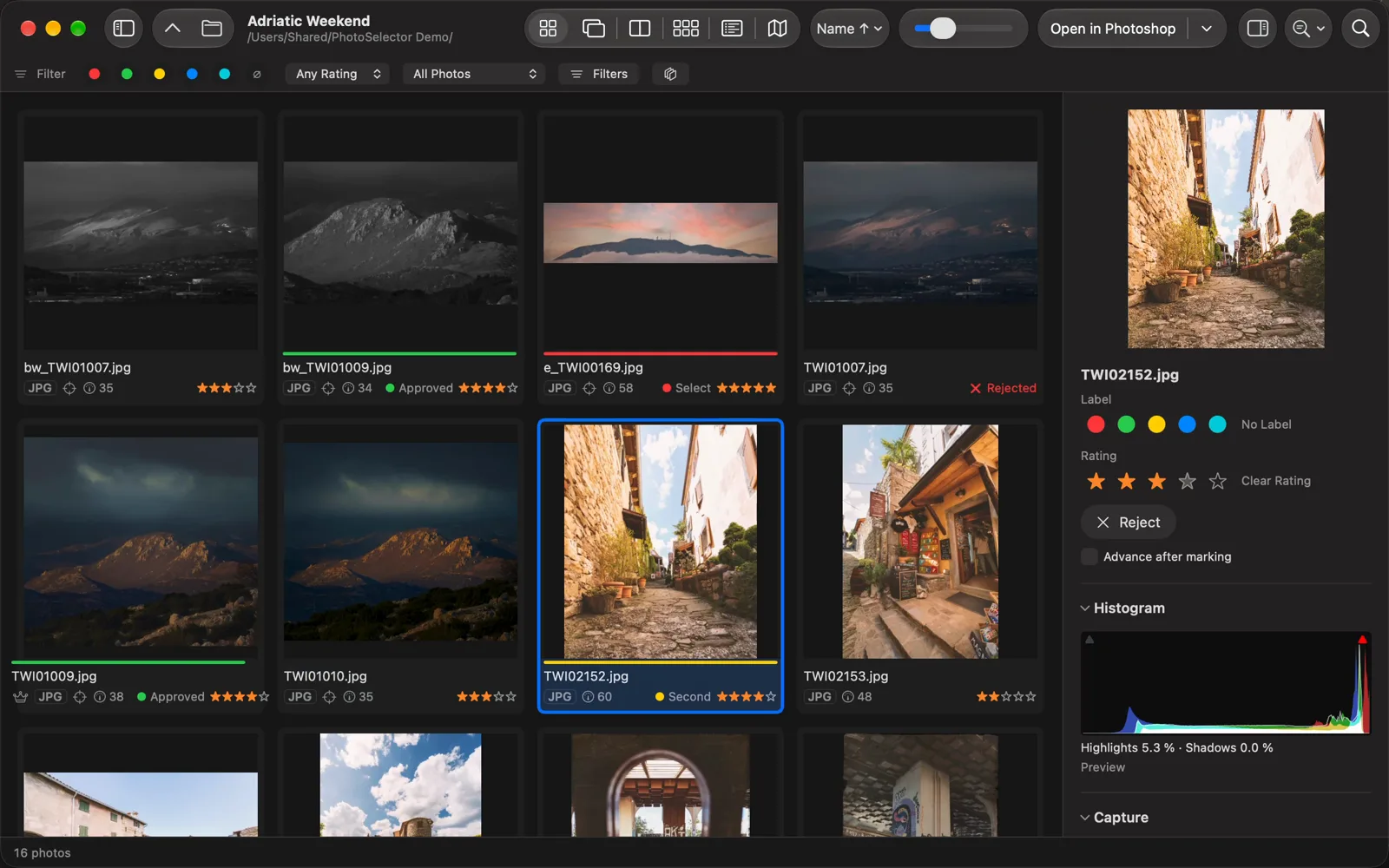
PhotoSelector is a culling app for photographers. Flick through a shoot, check focus at 100 %, mark every frame with a key, then send the keepers to Photoshop and the rejects to the Trash.
How it works
No catalog to import into, no account. Open a folder and start deciding.
Or a memory card. RAW, JPEG, HEIC, TIFF, PNG and PSD files show up as thumbnails at once (⌘O).
Press Space for full screen and step with the arrow keys. Z jumps to 100 % to check focus.
1–5 set a colour label, ⌘1–⌘5 the stars, X rejects. With auto-advance on, the next photo follows.
Return sends the keepers to Photoshop, RAWs open in Camera Raw. Move Rejected Photos to Trash clears the rest.
Culling
Grid, Loupe, Compare, Survey and a full-screen viewer, all driven from the keyboard. Every key can be changed.
The video couldn’t play here.
Open the videoOne large photo, a filmstrip and every mark in one row. Press E.
Reference and Candidate side by side, zoom and pan linked. ↑ keeps the better one, → brings the next. Press C.
Focus and exposure
Viewing aids for the Loupe, Compare and the viewer. They only change what you see: nothing is written into the photo.
Sharp edges light up in red, yellow, green, cyan or white, measured on the full-resolution image. Press ⇧F.
Blown highlights turn red, blocked shadows blue, and the bar says so. Press J.
Thirds, golden ratio, grid, diagonals, golden spiral and aspect frames from 1:1 to 16:9 — thin neutral lines, only while you want them. Press O.
Hold the mouse button on the photo for a 100, 200 or 400 % lens, exactly where you point.
Smart hints
PhotoSelector points at the photos that may be weak. You make every decision: a hint never sets a mark.
Lists the photos where eyes may be closed, a face or the whole photo may be blurred, or the quality score is low. Check them full screen, untick the ones to keep, and only then reject.
Faces, sharpness and the quality score come from Apple’s on-device frameworks. Nothing is uploaded, no account is needed.
Adobe workflow
Labels and ratings of RAW files go into the same XMP sidecars Bridge, Lightroom and Camera Raw read. A decision made here shows up there, and the other way round.
Only its own lines are changed; everything else stays byte for byte. When Bridge or Lightroom change a sidecar, the open folder picks it up.
Return sends the selection to Photoshop, and RAW files open in Camera Raw. Or choose another editor per file type.
Copy and paste develop settings with Bridge’s subset dialog, apply your own presets, and see which RAWs were already edited or cropped.
Narrow the folder by label, file type, camera, lens, date, ISO, aperture, focal length, keywords, faces or quality, with a count beside each value. Save the result as a smart collection.
Move Rejected Photos to Trash takes each RAW’s .xmp along, and counts the hidden rejects before it asks.
PhotoSelector shows the camera’s own image: Camera Raw edits are not rendered in its thumbnails or previews. Lightroom Classic reads changed sidecars after Metadata ▸ Read Metadata from Files.
Organize and metadata
Bring a shoot in from your cards, caption and keyword it, place it on the map, and group it without moving a file.
Every photo as a row, any metadata field as a column, sortable and markable in place. Press L.
Caption, creator, copyright and IPTC location for one photo or many; a keyword list with synonyms; templates you can import from Bridge.
Export and share
Export files for the client, print a contact sheet, or show the photo on a second screen while you choose together.
JPEG, PNG, TIFF or HEIC, resized, sharpened and renamed, with presets. A RAW exports its edited PSD, TIFF or JPEG when there is one. Originals are never overwritten.
A PDF or a print with your grid, captions, header and an optional watermark, previewed live. Press ⌘P.
A real Mac app
Every action has a shortcut you can change, with conflict checks. Settings are searchable, the user manual is built in, and every icon explains itself.
Privacy
Marks go into XMP sidecars and the app’s own database. Your RAW, JPEG and PSD files are only read.
PhotoSelector runs in Apple’s App Sandbox and sees only the folders you open in it.
No analytics, no account, no cloud. The network is used only for Apple Maps in the Map view and the location search.
Everything in it
What PhotoSelector does today, by area.
Thumbnail grid with size slider · Loupe with filmstrip · full-screen viewer, Fit and 100 % · Compare · Survey · Metadata view · Map · show items from subfolders · watch folder for tethered shooting · slideshow · secondary display · sort by file, capture or marks, or your own order
Five colour labels with Bridge’s names · 1–5 stars · Reject · auto-advance · undo and redo · Move Rejected Photos to Trash · Mark from List · Review mode · select by label or rating · filter bar · Bridge-style Filters with counts · search · Find across folders
Magnifier at 100, 200 or 400 % · focus peaking in five colours · AF points (Sony ARW, Canon CR2) · clipping warning · histograms · RAW data histogram for uncompressed Sony ARW and DNG · preview exposure ±4 EV · composition guides and aspect frames · info overlay
Faces column · eyes may be closed, face may be blurred · photo may be blurred · quality score 0–100 · scenes of similar frames with a best-frame crown · Suggest Rejects, confirmed by you · all on device
File Info: description, keywords, creator, copyright, IPTC location with map and place search, capture-time shift · readable All Metadata · keywords panel with synonyms and keyword sets · copy and paste metadata · templates, Bridge templates imported · Set Copyright · code replacements and variables · Map with GPX track logs · rotate
Collections · smart collections · stacks and Auto-Stack · RAW + JPEG pairs · Batch Rename with presets · Ingest from Cards with backup and SHA-256 verification · move, copy and new folder with selection · folder tree with favorites · cache management
Labels and ratings in XMP sidecars · sidecar changes from Bridge and Lightroom picked up live · Open in Photoshop, RAW in Camera Raw · other editors per file type · copy and paste Camera Raw settings · clear settings, presets, Previous Conversion · edited and cropped badges
Export to JPEG, PNG, TIFF, HEIC with presets · contact sheet PDF and print · every shortcut changeable · searchable Settings · English and Hungarian · built-in Help · App Sandbox · macOS 27 or later on Apple silicon
Feature switches: turn off any feature you don’t use, or start from a Culling or Viewer-only set.
Planned, without a date.
Availability
PhotoSelector is finishing its last checks before release.
€19 one-time purchase, all features
Requires macOS 27 or later on a Mac with Apple silicon.
Watch the demoQuestions
PhotoSelector is coming to the Mac App Store soon. There is no release date yet; this page will link to the store as soon as it is there.
No. The planned price is €19, a one-time purchase through the Mac App Store.
The RAW formats macOS can decode — Sony, Canon, Nikon, Fujifilm, Olympus, Panasonic, Pentax, Leica, DNG and more — plus JPEG, HEIC, TIFF, PNG and PSD. A brand-new camera works once macOS supports it.
No. Marks of RAW files go into their XMP sidecars, the rest into the app’s own database; image files are only read. Writing captions into JPEG and TIFF files is an opt-in setting, done only when a dry run proves nothing else would be lost.
Yes, through the XMP sidecars of RAW files. Lightroom Classic reads them after Metadata ▸ Read Metadata from Files. Collections, stacks and the manual order stay in PhotoSelector.
No. It shows the camera’s image; Camera Raw edits are only visible in Adobe’s apps. A badge tells you which RAWs were edited, and export uses the edited PSD, TIFF or JPEG beside a RAW when there is one.
No. Closed eyes, blur and the quality score are hints from Apple’s frameworks, computed on your Mac. They never set a mark; Suggest Rejects only rejects the photos you leave ticked.
No. PhotoSelector needs macOS 27 or later on a Mac with Apple silicon.
No. There are no analytics, no crash reports and no account. The only network use is Apple Maps, for the Map view and the location search in File Info; the app never asks where your Mac is.
A 34-second recording of the real app: the grid, the Loupe, marks, clipping, composition guides, Compare and the label filter.
Watch it in action